Touchscreen Sensitivity: How to Fine-Tune Your Device
27 June 2026
Have you ever noticed how sometimes your touchscreen just isn’t as responsive as you’d like? Maybe you’re tapping away on your phone, and it feels like it’s taking forever to register your touch, or perhaps it's so sensitive that even the slightest brush triggers an action. Either way, it can be frustrating, right? Well, you're not alone! The good news is, touchscreen sensitivity isn't set in stone, and with the right tweaks, you can fine-tune it to suit your preferences.
In this article, we’ll dive deep into what touchscreen sensitivity is, how it works, why it matters, and most importantly—how you can adjust it on your device. Whether you're using a smartphone, tablet, or even a laptop, these tips can help you get the most out of your touchscreen experience.
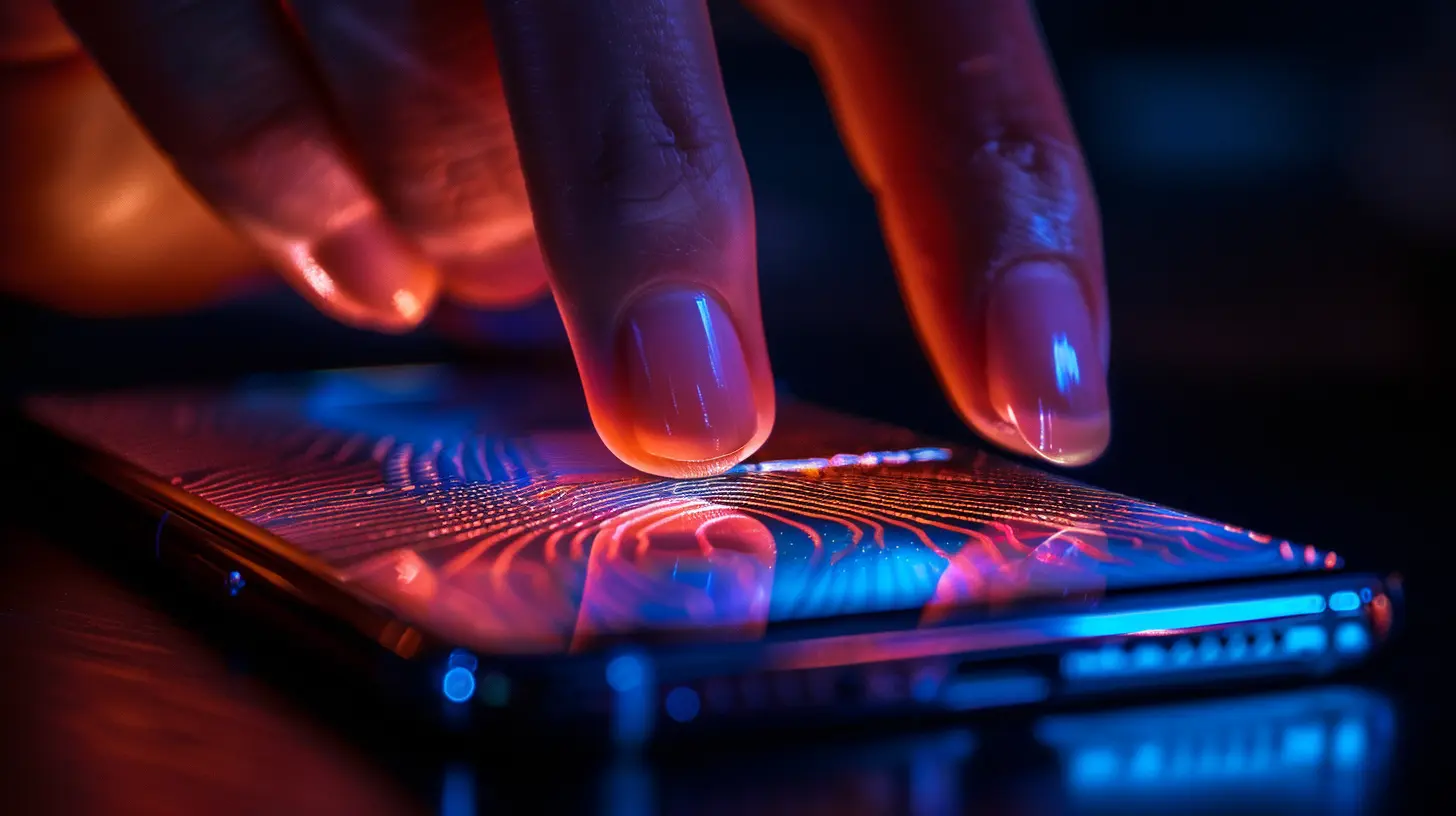
What Is Touchscreen Sensitivity?
Let's start with the basics. Touchscreen sensitivity refers to how responsive the screen is to your touch. When you tap, swipe, or pinch, the screen reacts based on how sensitive it is to contact. If it’s highly sensitive, even a light touch could trigger an action. On the flip side, if the sensitivity is too low, you might have to press harder or tap multiple times to get the desired response.Now, most modern devices have capacitive touchscreens. These work by measuring the electrical charge between your finger and the screen. When you touch the screen, it disrupts the electrical field, which is then interpreted as a command. The level of disruption depends on how hard or light your touch is, and this is where sensitivity settings come into play.

Why Does Touchscreen Sensitivity Matter?
You might be wondering, "Why should I even bother with touchscreen sensitivity?" Well, think about it. We use touchscreens for just about everything these days—scrolling through social media, typing out messages, browsing the web, you name it. If your screen isn't responding the way you want it to, it can affect your productivity and even your sanity!For instance, if you're someone who has a light touch, a low sensitivity setting might make you feel like your device is sluggish. On the other hand, if you tend to handle your device more firmly, a high sensitivity setting could result in accidental taps and swipes. In a nutshell, adjusting your touchscreen sensitivity can make your device feel more intuitive and tailored to your needs.

How to Adjust Touchscreen Sensitivity on Various Devices
Now that we've covered the basics, let’s get into the nitty-gritty. Different devices have different ways of adjusting touchscreen sensitivity. Here’s a breakdown of how you can do it on some of the most common platforms.1. Adjusting Touchscreen Sensitivity on Android Devices
If you're an Android user, you're in luck. Android offers a few ways to tweak your touchscreen sensitivity, especially on more recent models.Steps to Adjust Touch Sensitivity on Android:
1. Go to Settings: Open your device's settings app.2. Navigate to Display or Accessibility: Depending on your phone model, you’ll either find the touchscreen settings under "Display" or "Accessibility".
3. Look for Touch Sensitivity or Interaction Settings: Some devices like Samsung have an option called “Touch Sensitivity” under display settings. Enable this if you want to increase the sensitivity.
4. Use Accessibility Features: If your phone doesn’t have a direct sensitivity toggle, go to the “Accessibility” section. Here, you can adjust touch delay settings, which control how long you need to press before the device registers the touch. This can give you some control over sensitivity.
Pro-tip: If you’re using a screen protector, this can sometimes make the screen less responsive. Increasing the touch sensitivity through these settings can help counteract that.
2. Adjusting Touchscreen Sensitivity on iPhones
For iPhone users, the process is slightly different but equally easy. Apple has integrated some neat accessibility features that allow you to control how your device responds to touch.Steps to Adjust Touch Sensitivity on iPhone:
1. Open Settings: Go to the settings app on your iPhone.2. Tap on Accessibility: Scroll down and tap on the “Accessibility” option.
3. Navigate to Touch: Under the "Physical and Motor" section, tap on “Touch”.
4. Enable Touch Accommodations: Toggle on “Touch Accommodations”. From here, you can adjust several settings like Hold Duration and Ignore Repeat to fine-tune how your phone registers touch.
5. Adjust 3D Touch Sensitivity: If your iPhone supports 3D Touch (available in older models), there’s an option to adjust the sensitivity of this feature. You can set it to "Light," "Medium," or "Firm" depending on your preferences.
3. Fine-Tuning Touchscreen Sensitivity on Tablets
Whether it's an iPad or an Android tablet, the steps for adjusting touchscreen sensitivity are quite similar to those on smartphones.On iPads:
1. Go to Settings > Accessibility > Touch.2. Enable Touch Accommodations and tweak the settings to your liking.
On Android Tablets:
1. Head into Settings > Display or Accessibility.2. Look for touch sensitivity options similar to what’s available on Android phones.
4. Adjusting Touchscreen Sensitivity on Windows Devices
Got a Windows laptop or a hybrid device with a touchscreen? You can adjust its sensitivity, too.Steps to Adjust Touch Sensitivity on Windows:
1. Open Control Panel: First, type "Control Panel" into the search bar and open it.2. Navigate to Hardware and Sound: Once you're in, click on "Hardware and Sound" and then select “Pen and Touch” settings.
3. Adjust Touch Sensitivity: Under the “Pen and Touch” section, select the "Touch" tab. Here, you’ll find options to adjust how the screen responds to your touch.
4. Calibrate Your Screen: If increasing the sensitivity doesn’t do the trick, you can try calibrating your touchscreen. Go back to "Control Panel" and search for “Calibrate the screen for pen or touch input”. Follow the on-screen instructions to recalibrate your device.
Common Reasons for Touchscreen Insensitivity
Even after adjusting the sensitivity, you might still run into issues. If that’s the case, several factors could be at play. Let’s go over some common culprits:1. Dirty or Greasy Screen
A dirty screen can mess with how your device registers touch. If you haven’t cleaned your screen in a while, a quick wipe with a microfiber cloth can make a world of difference.2. Screen Protector Interference
Some screen protectors, especially thicker ones, can reduce the sensitivity of your touchscreen. If you notice your screen becoming less responsive after applying a screen protector, try removing it or adjust the sensitivity settings.3. Software Bugs
Sometimes, software issues can affect touchscreen performance. If your device is running slowly or lagging, restarting it or updating your software might fix the problem.4. Hardware Issues
In rare cases, touchscreen problems might be due to hardware failures. If you’ve tried everything and your screen still isn’t responding correctly, it might be time to consult a professional.Tips for Maximizing Touchscreen Responsiveness
Here are a few tips to ensure your touchscreen is always responsive:- Keep your screen clean: A clean screen not only looks better but also works better.
- Update your device: Always keep your device’s software up to date to ensure optimal performance.
- Avoid multitasking overload: Running too many apps at once can slow down your device, affecting touchscreen responsiveness.
- Use a stylus: If you find your fingers aren’t cutting it, consider using a stylus for precise control.
Conclusion
Touchscreen sensitivity can make or break your interaction with your device. Whether you’re scrolling through Instagram, typing out an email, or playing a game, having the right sensitivity settings makes all the difference. The best part? It’s easy to adjust! Now that you know how to tweak your touchscreen’s settings on various devices, you’re one step closer to having a more responsive and enjoyable experience.So, what are you waiting for? Go ahead and fine-tune your device’s touchscreen for optimal performance—your fingers will thank you!
all images in this post were generated using AI tools
Category:
Touchscreen DevicesAuthor:

Kira Sanders
Discussion
rate this article
2 comments
Atlas McKinstry
Great tips on adjusting touchscreen sensitivity! It's surprising how small changes can make a big difference in usability. I tried the calibration method you mentioned, and it definitely improved my device's response. Looking forward to more practical advice like this!
August 31, 2026 at 12:42 PM
Harmony McCaffrey
Touchscreen sensitivity is like a relationship-too clingy and it's annoying, too distant and you just can't connect!
July 6, 2026 at 3:44 AM
Kira Sanders
That's a clever analogy! Finding the right balance can really make a difference in usability.