The Best Monitors for Photo Editing in 2027
17 September 2026
Photo editing hardware has always been a moving target. Just when you think your setup is dialed in, a new panel technology drops, a color space gets wider, and suddenly your trusty workhorse feels a little less trustworthy. By 2027, the monitor landscape has shifted in ways that matter a lot for anyone who edits photos seriously, whether you are a working professional, a serious hobbyist, or someone building a studio from scratch. This guide breaks down what actually matters right now, which monitors deserve your money, and the traps that catch even experienced editors.
Why Monitor Choice Matters More Than Ever in 2027
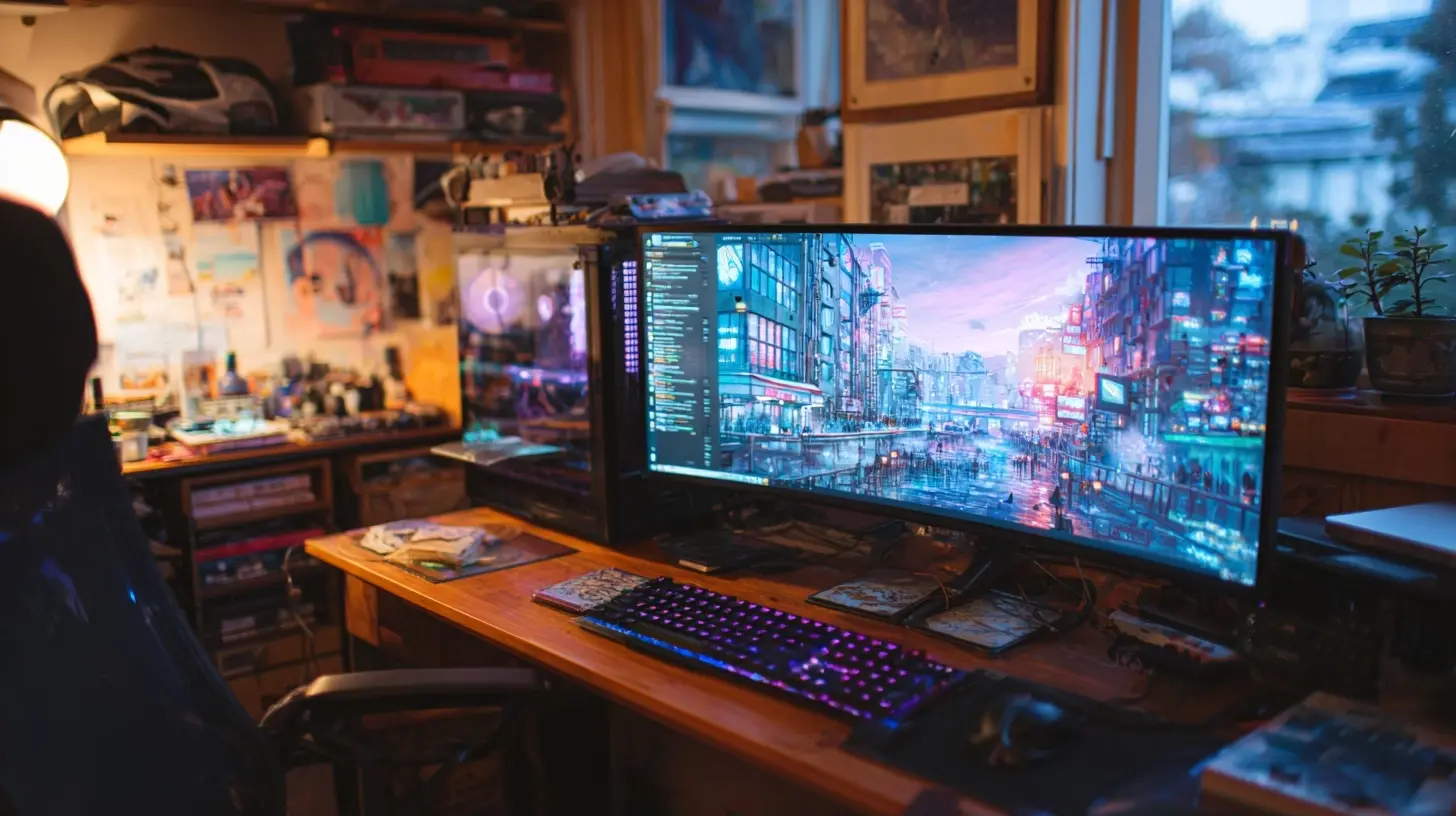
A monitor is not just a window into your files. It is the single most important decision in your color pipeline. Your camera captures data, your software interprets it, but your monitor is where you make every judgment call about exposure, contrast, and color. If the display lies to you, every edit becomes a guess.In 2027, the stakes are higher because delivery channels have multiplied. A single image might need to look right on a wide-gamut HDR phone screen, a standard sRGB laptop, and a print that hangs on a wall. Monitors have responded by offering wider coverage, better uniformity, and smarter calibration tools. The flip side is that marketing language has gotten noisier. Terms like "HDR ready" and "cinema-grade" get slapped on panels that have no business carrying them.
So the goal here is not to chase specs. It is to understand which specs actually change your workflow, and which ones are there to sell units.
The Core Specs That Actually Matter
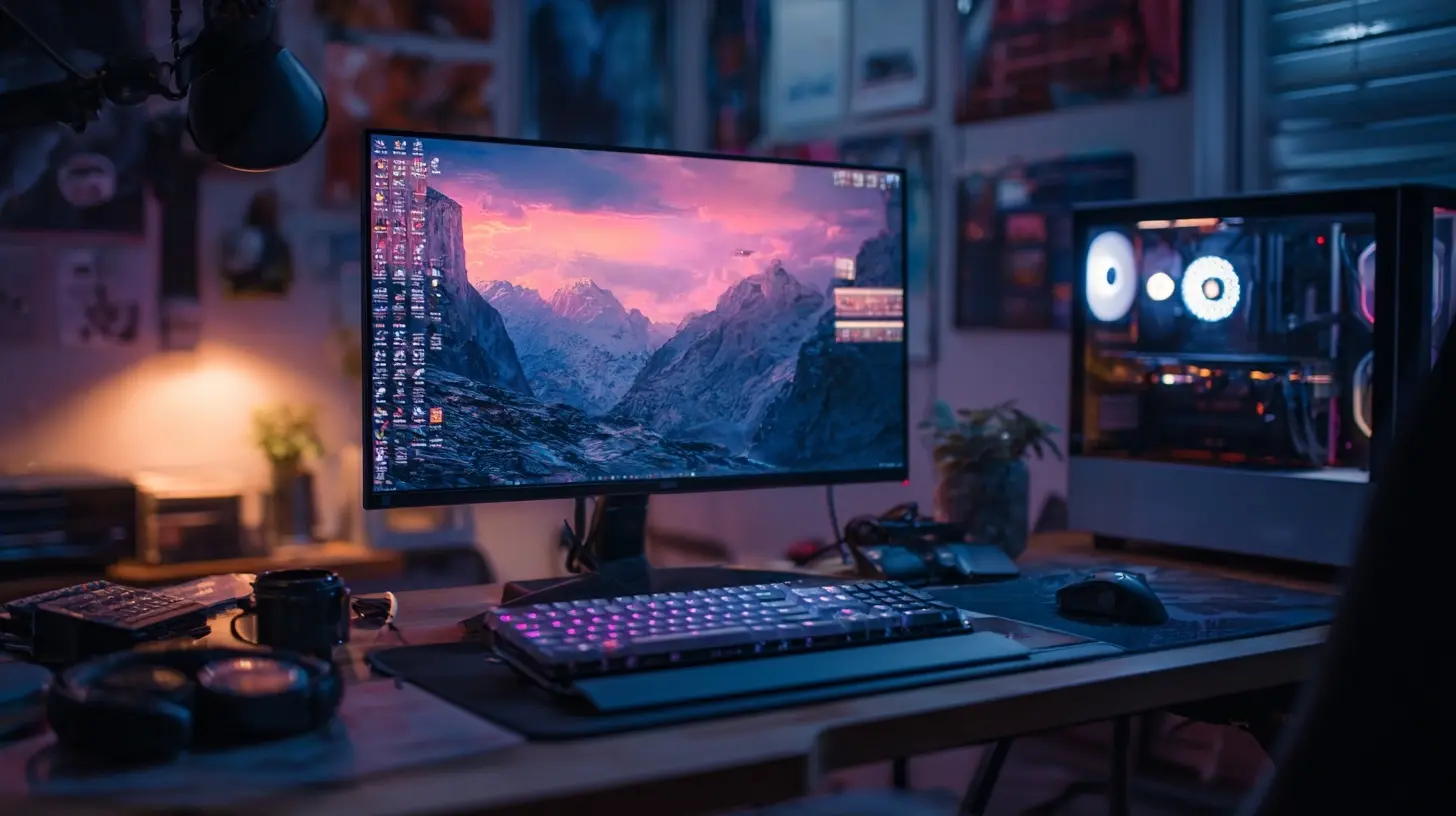
Before naming specific models, it helps to agree on what we are even measuring. A lot of buyers fixate on resolution and ignore everything else. That is backwards for photo work.Color Gamut Coverage
Adobe RGB and DCI-P3 are the two gamuts that matter most for photo editing. sRGB is the baseline, and any monitor worth buying covers it fully. The question is how much of the wider spaces you get.For print work, Adobe RGB coverage is more relevant because it maps more closely to what inkjet and offset printers can reproduce, especially in saturated cyans and greens. For screen-first delivery, DCI-P3 has become the de facto target because most modern phones, tablets, and streaming platforms use it. A monitor that covers 99 percent of DCI-P3 and 95 percent or more of Adobe RGB is a solid all-rounder in 2027.
Watch out for coverage claims that do not specify a percentage. "Supports Adobe RGB" can mean 70 percent. Always look for the number.
Delta E and Calibration
Delta E measures how far a displayed color drifts from the intended value. A Delta E under 2 is generally considered excellent for photo work. Under 1 is reference-grade. Many mid-range monitors now ship with factory calibration reports claiming Delta E under 2 out of the box, which is a genuine improvement over the bad old days.But factory calibration drifts. Panels age, backlights shift, and ambient conditions change. Any serious monitor should support hardware calibration, meaning the calibration data is written directly to the monitor's internal lookup tables rather than applied as a software correction. Hardware calibration preserves your graphics card's 10-bit output and gives cleaner gradients. Software calibration via a colorimeter and ICC profile works, but it is a compromise.
Panel Type: IPS, OLED, and Mini-LED
IPS remains the safe default for photo editing. It offers wide viewing angles, accurate color, and no burn-in risk. Its weakness is contrast. Black levels are mediocre compared to OLED.OLED delivers perfect blacks, near-instant pixel response, and stunning contrast. For photo editing, the deep blacks make shadow detail pop in a way that IPS simply cannot match. The catch is burn-in risk, brightness limitations in full-screen white scenarios, and in some cases, aggressive auto-dimming that can interfere with critical judgments.
Mini-LED sits in between. It uses LED backlights in many small zones to boost contrast without OLED's burn-in concerns. It is excellent for HDR work, though blooming around bright objects on dark backgrounds can be distracting.
For most photo editors in 2027, a high-quality IPS or a modern OLED is the right call. Mini-LED is best if HDR video is also part of your workflow.
Resolution and Pixel Density
4K is the practical floor now. 5K and 6K displays offer sharper text and more working room, which matters when you are pixel-peeping at 200 percent. A 27-inch 4K panel sits around 163 pixels per inch, which is comfortable. A 32-inch 4K panel drops to about 138 PPI, still fine but noticeably softer for text.Higher resolution also demands more from your GPU and your cables. Make sure your system can drive the panel at its native resolution and refresh rate before you buy.
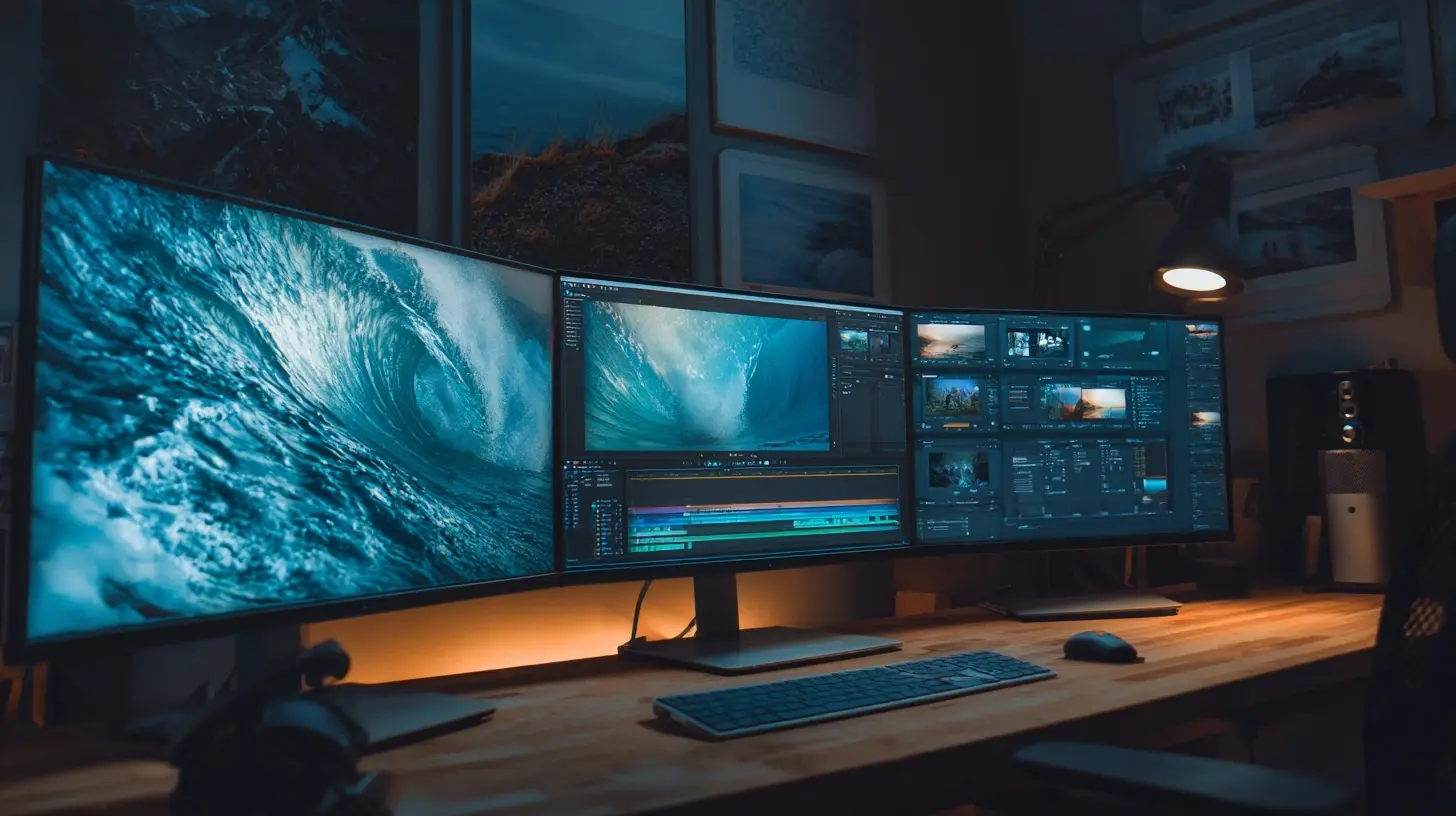
The Best Monitors for Photo Editing in 2027
Here is where things get practical. These picks represent different budgets and priorities. None of them is perfect for everyone, and that is the point.Best Overall: A 27-Inch 4K IPS with Hardware Calibration
The sweet spot for most photo editors remains a 27-inch 4K IPS panel with full Adobe RGB and DCI-P3 coverage, hardware calibration support, and a built-in colorimeter or compatibility with one. Several manufacturers now offer this combination at prices that would have seemed absurd five years ago.Why this configuration? The 27-inch size is large enough for split-screen editing without forcing you to move your head constantly. 4K gives you crisp detail. IPS keeps colors stable across the screen. Hardware calibration keeps everything honest over time.
What to look for: a Delta E under 2 factory report, 99 percent Adobe RGB, 98 percent DCI-P3, USB-C with power delivery for laptop users, and a hood or at least a matte coating to control reflections. A built-in calibration sensor is a nice bonus because it removes the "where did I put my colorimeter" problem.
The trade-off is contrast. IPS blacks are gray-ish, and if you edit a lot of low-key images, you will feel it.
Best for Print Work: A Wide-Gamut 32-Inch Adobe RGB Specialist
If your output is primarily print, a 32-inch panel with near-total Adobe RGB coverage is worth the extra desk space. The larger canvas makes soft-proofing less painful, and the wider gamut lets you see saturated colors that a P3-only display would clip.These monitors tend to be heavier, more expensive, and less suited to video work. They also often lack the gaming-friendly refresh rates that some hybrid users want. But for a dedicated print workflow, they are hard to beat.
One caution: wider gamut is not automatically better. If you edit in Adobe RGB but deliver to sRGB without converting properly, your images will look flat and desaturated on most screens. Gamut without color management discipline is a liability.
Best OLED Option: A 32-Inch 4K OLED for Contrast Lovers
OLED has matured enough that burn-in is less of a practical concern for photo editors who vary their content. If you edit a mix of images and do not leave static UI elements on screen for hours, a modern OLED is a reasonable choice.The appeal is obvious the moment you open a high-contrast image. Shadows have depth. Highlights have punch. The sense of dimensionality is genuinely different from IPS.
The caveats are real, though. Full-screen brightness is lower than IPS, which can matter in a bright room. Auto-dimming features, designed to protect the panel, can subtly change brightness mid-edit. And text rendering on some OLED subpixel layouts is slightly softer than on IPS.
If you work in a controlled-light studio and value contrast above all else, OLED is compelling. If your room has big windows and you edit at midday, think twice.
Best Budget Pick: A 27-Inch 1440p IPS with Good sRGB Accuracy
Not everyone needs Adobe RGB. If your work lives online, sRGB is your target, and a well-calibrated 1440p IPS panel can serve you beautifully for a fraction of the cost.The trade-off is pixel density. 1440p at 27 inches is about 109 PPI, which is noticeably less sharp than 4K. For web delivery, that is usually fine. For heavy retouching or text-heavy work, you will miss the extra pixels.
The key is to prioritize calibration support and panel uniformity over resolution. A calibrated 1440p panel beats an uncalibrated 4K panel every time.
Best Ultrawide: A 34-Inch Curved IPS for Multitaskers
Ultrawide monitors have carved out a niche for editors who keep Lightroom, Photoshop, and a browser open simultaneously. The extra horizontal space reduces alt-tabbing, which sounds minor until you try it.The downsides: curved panels can introduce subtle geometric distortion that bothers some editors, and ultrawide resolutions often mean lower pixel density. Color accuracy on ultrawides has improved, but the very best panels still tend to be standard 16:9.
If your workflow is heavily multi-application, an ultrawide is a productivity win. If you mostly work in one app at a time, a standard aspect ratio is a better use of money.
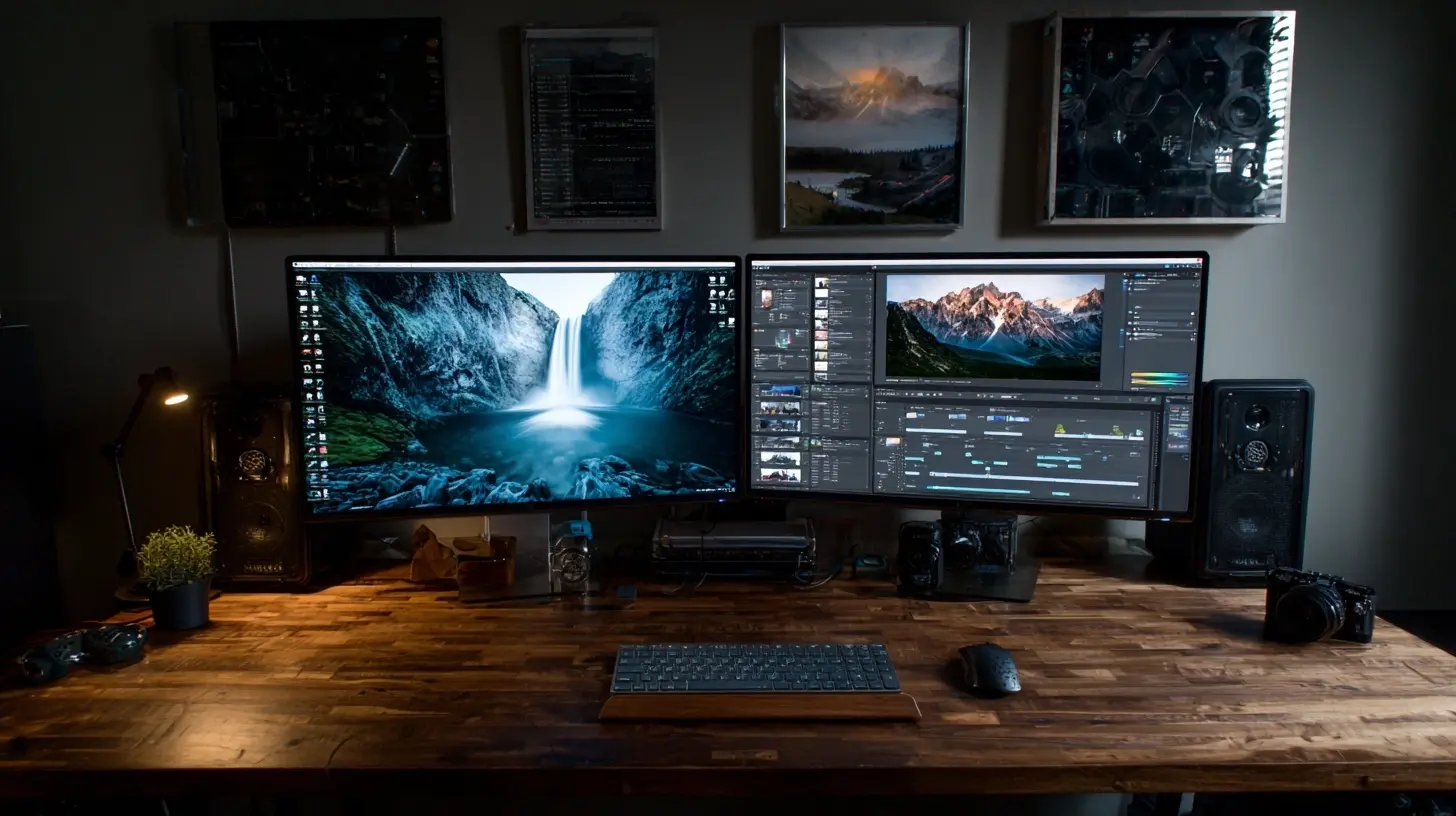
Common Mistakes and Misconceptions
Even experienced editors fall into these traps. Avoiding them will save you money and frustration.Chasing Maximum Brightness
Higher nits is not automatically better for photo editing. A monitor that hits 1000 nits is great for HDR video, but for SDR photo work, you will calibrate to around 100 to 120 nits anyway. Extreme brightness without good tone mapping just clips highlights.Ignoring Ambient Light
Your monitor does not exist in a vacuum. A glossy panel in a room with a window behind you is a disaster regardless of specs. A matte panel in a dim room can look washed out. Match the panel to your environment, and consider a hood or bias lighting.Trusting the Factory Calibration Forever
Factory calibration is a starting point, not a permanent state. Recalibrate every few hundred hours of use, or every few months, whichever comes first. If you print, recalibrate before any important print session.Assuming More Gamut Means Better Color
A wider gamut with poor color management produces worse results than a narrow gamut with good management. The monitor is one link in a chain that includes your camera profile, your working space, and your output profile. Break any link and the whole thing fails.Forgetting About the Rest of the Chain
A perfect monitor connected to a laptop with a low-quality GPU output, or paired with a cheap colorimeter, will not deliver perfect results. Budget for a decent calibrator. It is the cheapest upgrade with the biggest impact.Practical Advice for Buying in 2027
Here is a decision framework that cuts through the noise.First, define your primary output. Print, web, or both. This determines your gamut target.
Second, measure your space. How far will you sit from the screen? A 32-inch monitor at two feet is overwhelming. A 27-inch at three feet feels small. Match size to distance.
Third, check your system. Can your GPU drive the resolution and refresh rate you want? Do you have the right cables? USB-C with DisplayPort alt mode is the cleanest single-cable solution for laptop users.
Fourth, budget for calibration. A monitor without a calibrator is a monitor you cannot fully trust.
Fifth, buy from a retailer with a good return policy. Panel uniformity varies between individual units. If you get a bad one, exchange it.
Real-World Examples
Consider a wedding photographer who delivers both albums and online galleries. She needs Adobe RGB for print and P3 for screen. A 27-inch 4K IPS covering both gamuts with hardware calibration is the obvious choice. She calibrates monthly and keeps a print profile for her lab.Now consider a landscape photographer who sells large fine-art prints. He prioritizes Adobe RGB coverage and panel uniformity above all else. A 32-inch wide-gamut IPS with a built-in calibrator is worth the investment. He soft-proofs every image before sending it to the printer.
Finally, consider a food blogger who shoots for her website and Instagram. She does not need Adobe RGB. A calibrated 27-inch 1440p IPS in sRGB is plenty, and she saves money for lenses.
Different needs, different monitors. There is no single best answer.
Final Thoughts
The best monitor for photo editing in 2027 is the one that matches your output, your space, and your discipline. Specs matter, but they matter less than calibration, color management, and knowing what you are actually editing for. Buy the panel that fits your workflow, not the one with the biggest number on the box. Then calibrate it, learn your color spaces, and get back to making images.
all images in this post were generated using AI tools
Category:
Camera GearAuthor:

Kira Sanders
Discussion
rate this article
2 comments
Rusty McPherson
This article highlights top monitors for photo editing, emphasizing color accuracy and resolution. Great insights!
October 14, 2026 at 12:00 PM
Marcus Rhodes
Great roundup of monitors for photo editing! It's essential to prioritize color accuracy and resolution. I'm excited to see how these models perform in real-world scenarios. Thanks for the insights!
October 3, 2026 at 4:08 AM
Kira Sanders
Thanks for your feedback! I'm glad you found the roundup helpful. It'll be interesting to see how these models hold up in practice too.