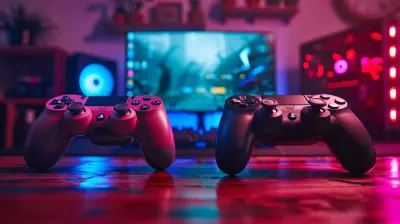
Optimizing Your PC for Maximum Gaming Performance
29 March 2026
When it comes to gaming, every millisecond counts. We all want smooth, lag-free gameplay with those jaw-dropping graphics, right? But sometimes, even with a decent rig, things don't run as smoothly as we'd like. The good news? You don't have to break the bank for a new graphics card or processor. There are things you can do to squeeze every last drop of performance out of your current setup.
In this guide, we’ll dive deep into how to optimize your PC for maximum gaming performance. Whether you're a casual gamer or a hardcore enthusiast, these tips and tricks will help you unlock the full potential of your machine. So, let’s get started!
1. Keep Your Drivers Updated
This might seem obvious, but it's often overlooked. Your graphics card, motherboard, and sound card all have drivers that can significantly impact your gaming experience. These drivers are regularly updated by manufacturers to fix bugs, improve performance, and add new features.How to Update Your Drivers:
- Graphics Card: Whether you're using NVIDIA or AMD, both have software that will notify you of driver updates. For NVIDIA users, that's GeForce Experience, while AMD enthusiasts can use the Radeon Software.- Motherboard and Other Drivers: Visit the official website of your motherboard manufacturer and search for the latest drivers. Also, don't forget to update components like your network card and sound drivers.
By keeping these drivers updated, you're ensuring that your hardware is running at its full potential.
2. Overclock Your Hardware (But Be Careful!)
Overclocking is like giving your hardware an extra shot of adrenaline. It involves increasing the clock speed of your CPU, GPU, or RAM to get more performance than they're rated for. But, before you go cranking those numbers up, know this: overclocking generates more heat and can reduce the lifespan of your hardware if done incorrectly.Getting Started with Overclocking:
- For CPU: Most modern CPUs can be overclocked through the BIOS or, more user-friendly, through software like Intel Extreme Tuning Utility or AMD Ryzen Master.- For GPU: You can use tools like MSI Afterburner to safely overclock your GPU. This software allows you to tweak the core clock, memory clock, and fan speeds to get that extra edge.
Warning: Overclocking can void warranties and cause system instability if you're not careful. Always monitor your temperatures and stress test your system to ensure it’s stable after any changes.
3. Upgrade to an SSD
If you're still using a traditional hard drive (HDD), you're holding back your gaming performance. Solid-state drives (SSDs) are miles faster than HDDs when it comes to loading games, booting your system, and general file transfers.What to Look for in an SSD:
- NVMe SSDs: These are faster than older SATA SSDs, but even a standard SATA SSD will outperform an HDD by a mile.- Capacity: For gaming, aim for at least 500GB to 1TB. Some modern games can take up over 100GB of space on their own, so you’ll want enough room for your library.
Switching to an SSD won’t necessarily improve your frame rates, but it will make your games load faster and reduce stuttering in open-world titles where data is constantly being loaded in the background.
4. Optimize Your In-Game Settings
It might be tempting to max out every graphical setting in your favorite game, but this can bog down even the most powerful systems. Finding the right balance between performance and visuals is key to smooth gameplay.Which Settings to Tweak:
- Resolution: Higher resolutions look better but come at the cost of performance. If you're struggling with frame rates, try lowering the resolution slightly.- Textures: High-quality textures can use a lot of video RAM (VRAM). If your GPU is older or doesn't have much VRAM, consider lowering texture quality.
- Anti-Aliasing (AA): This smooths out jagged edges but can significantly reduce performance. Try lowering or disabling AA if you're looking for a frame rate boost.
- Shadows and Reflections: These can be resource-intensive. Reducing the quality or completely turning them off can give you a noticeable performance increase.
Most games offer a Benchmarking Tool or an FPS Counter so you can easily monitor the impact of changes you make.
5. Keep Your PC Clean (Physically and Digitally)
Over time, dust can accumulate inside your PC, clogging fans and causing your components to overheat. Overheating can throttle your CPU and GPU, reducing their performance.Physical Cleaning:
- Turn off your PC and unplug it from the wall.- Use a can of compressed air to blow the dust out of your case, paying extra attention to fans and heatsinks.
- Make sure your PC is placed in an area that allows for good airflow, not crammed into a tiny corner.
Digital Cleaning:
- Uninstall Unnecessary Programs: Extra software running in the background can eat up your system's resources. Use the Task Manager to identify which programs are using the most CPU or memory and uninstall or disable them.- Defragment Your Hard Drive: If you're still using an HDD, defragmenting it can help speed up file access. SSD users don’t need to worry about this step, as they manage data differently.
- Clean Up Temporary Files: Use tools like CCleaner or Windows' built-in Disk Cleanup utility to remove unnecessary files, freeing up valuable space.
6. Adjust Power Settings for Performance
Windows offers different power plans that prioritize either performance or energy efficiency. For gaming, you'll want to ensure that your PC is in High-Performance mode.How to Switch Power Plans:
- Open the Control Panel.- Navigate to Power Options.
- Select the High-Performance plan.
This setting ensures that your CPU and GPU are always running at their maximum potential, rather than conserving power.
7. Manage Background Processes
A big culprit in poor gaming performance is unnecessary background apps and services. These can hog your CPU, RAM, and disk usage, leaving less for your game to use.How to Manage Background Processes:
- Press Ctrl+Shift+Esc to open the Task Manager.- In the Processes tab, look for any programs using a lot of CPU, Memory, or Disk.
- Right-click and select End Task for any unnecessary applications.
You can also disable startup programs that automatically run when you boot up your PC. This can free up resources right from the start.
8. Optimize Your Network for Online Gaming
If you're into multiplayer games, you already know that a slow or unstable connection can ruin the experience. A few tweaks to your network setup can help reduce latency and packet loss.Tips to Improve Network Performance:
- Use a Wired Connection: Wi-Fi is convenient, but a wired Ethernet connection will always provide a more stable and faster connection.- Update Your Router Firmware: Just like your PC's drivers, routers also receive updates to improve performance and security. Check your router’s settings or manufacturer’s website for updates.
- Enable QoS (Quality of Service): Most modern routers have a QoS setting that prioritizes gaming traffic over other types of traffic, ensuring a smoother gaming experience even when other devices are using the network.
9. Close Unnecessary Visual Effects
Windows comes with a bunch of fancy visual effects that, while nice to look at, can eat into your system's resources. Disabling or reducing these can free up some extra performance for gaming.How to Disable Visual Effects:
- Right-click on This PC and select Properties.- Click on Advanced System Settings and then navigate to the Performance Settings under the Advanced tab.
- In the Performance Options, select Adjust for best performance to disable all visual effects, or you can manually choose which effects to keep.
10. Consider Upgrading Your Hardware
Sometimes, no amount of optimization will give you the performance you need. If your PC is aging, it might be time to consider upgrading a few key components.Key Hardware Upgrades to Consider:
- GPU (Graphics Card): If you're struggling to run newer games, upgrading your GPU can give you the biggest performance boost.- RAM: For modern gaming, 16GB of RAM is the sweet spot. If you're still running 8GB or less, adding more can significantly improve performance in memory-intensive games.
- CPU: While games are more dependent on the GPU, a powerful CPU is still important for handling complex physics and AI calculations.
Conclusion
Optimizing your PC for maximum gaming performance doesn't have to be a daunting task. By following these tips—keeping drivers updated, tweaking settings, overclocking hardware, and performing regular maintenance—you can ensure that your gaming experience is as smooth and immersive as possible. Remember, every system is different, so feel free to experiment with these tips to find what works best for you. Now, go ahead and crush that next game with buttery-smooth frame rates!all images in this post were generated using AI tools
Category:
Pc GamingAuthor:

Kira Sanders
Discussion
rate this article
2 comments
Georgina Roberts
Balancing hardware upgrades with software optimizations is crucial for enhancing gaming performance. Prioritizing CPU and GPU efficiency while managing background processes can yield significant improvements.
April 1, 2026 at 11:00 AM
Kira Sanders
Absolutely! Balancing hardware upgrades with software optimizations is key to unlocking your PC's full gaming potential. Focusing on CPU and GPU efficiency while controlling background processes can lead to substantial performance gains. Thank you for highlighting this!
Jax McVaney
Great insights on enhancing gaming performance! I'll definitely implement these tips for a smoother experience.
March 31, 2026 at 2:45 AM
Kira Sanders
Thank you! I'm glad you found the tips helpful. Happy gaming!