How to Secure Your Wi-Fi and Home Network for the Future
23 July 2026
The home network is no longer just a utility. It is the foundation of your digital life. Every smart thermostat, doorbell camera, voice assistant, laptop, and gaming console depends on it. As more devices get connected, the attack surface grows. The old approach of setting a Wi-Fi password and forgetting about it no longer works. Securing your home network for the future means thinking ahead, understanding how threats evolve, and building a setup that can adapt.
I have spent years designing and troubleshooting networks for both enterprise and residential environments. The same principles that protect a corporate network apply to your home, but with less complexity and cost. The key is knowing where to focus your effort. This article will walk you through the practical steps, the reasoning behind them, and the trade-offs you need to consider.
Why Home Network Security Matters More Now
Many people think they have nothing worth stealing. That is a dangerous assumption. Attackers are not just after your credit card numbers. They want your identity, your credentials, your personal photos, and even your computing power for botnets. A compromised router can redirect you to fake login pages for banks or social media. A smart camera can be used to spy on your family. A smart speaker can be turned into a listening device.The future of home networking includes more IoT devices, more remote work, and more reliance on cloud services. Each new device is a potential entry point. The router is the gatekeeper. If it is weak, everything behind it is at risk. The goal is to make your network resilient against both current threats and those that are likely to emerge in the next few years.
The Foundation: Your Router and Its Firmware
Your router is the single most important piece of hardware in your home network. It is the first line of defense. Yet most people buy whatever is on sale at the electronics store, plug it in, and never touch the settings again. That is a mistake.Choose a Router with Long-Term Support
Not all routers are created equal. Consumer routers from major brands like Asus, TP-Link, Netgear, and Ubiquiti offer different levels of security support. The key factor is how long the manufacturer provides firmware updates. Many routers stop receiving security patches after two or three years. If you buy a router that is already two years old, you might only get one year of updates.For future-proofing, look for routers that support open-source firmware like OpenWrt, DD-WRT, or FreshTomato. These projects are community-maintained and often provide security patches long after the manufacturer has abandoned the hardware. The trade-off is that installation requires some technical skill, and you lose manufacturer support. But for someone willing to learn, it is one of the best ways to keep an older router secure.
Alternatively, consider routers from brands known for long update cycles, like Ubiquiti or MikroTik. These are more expensive and less user-friendly, but they offer enterprise-grade features and years of updates.
Keep Firmware Updated Automatically
Do not rely on manual checks. Enable automatic updates if your router supports them. If not, set a monthly calendar reminder to check the manufacturer's website. Many attacks exploit known vulnerabilities that have been patched for months. The WPA2 KRACK vulnerability from 2017 is a classic example. Routers that were never updated remain vulnerable to this day.One common mistake is assuming that a router's firmware updates are the same as its feature updates. They are not. Security patches are often released separately. Check the changelog for keywords like "security fix" or "CVE." If your router has not received a security update in over a year, consider replacing it.
Wi-Fi Encryption: WPA3 and Beyond
Wi-Fi encryption is the lock on your front door. If it is weak, anyone within range can listen to your traffic or break into your network.Move to WPA3 If Possible
WPA3 is the current standard. It fixes several weaknesses in WPA2, particularly around the handshake process that authenticates devices. WPA3 uses Simultaneous Authentication of Equals (SAE), which is resistant to offline dictionary attacks. That means even if someone captures the handshake, they cannot easily guess your password.However, WPA3 is not yet universal. Many older devices, especially IoT gadgets, only support WPA2. If you enable WPA3-only mode, those devices will not connect. The practical solution is to use WPA3/WPA2 mixed mode. This allows newer devices to use WPA3 while older ones fall back to WPA2. The security of the network is only as strong as the weakest device, but mixed mode is still better than using WPA2 exclusively.
Why WPA2 Is Still Acceptable (With Caveats)
If you have devices that cannot support WPA3, WPA2 is still reasonably secure if you use a strong password and disable WPS (Wi-Fi Protected Setup). WPS is a feature that allows easy connection via a PIN or button press. It is notoriously insecure. The PIN can be brute-forced in hours. Turn it off in your router settings.Another consideration is that WPA2 is vulnerable to the KRACK attack, which targets the handshake. Most modern routers have been patched, but if yours is not, an attacker within range could decrypt your traffic. If you cannot upgrade to WPA3, at least ensure your router has the latest KRACK patch.
The Role of a Strong Password
A weak Wi-Fi password is like having a high-security lock but leaving the key under the mat. Many people use simple passwords like "password123" or their street address. That is a risk. Use a passphrase of at least 12 characters, mixing uppercase, lowercase, numbers, and symbols. A good method is to combine three or four random words, like "BlueTurtleKite7!". This is easy to remember but hard to guess.Do not share your Wi-Fi password publicly. If you have guests, set up a separate guest network. This isolates their devices from your main network and limits what they can access.
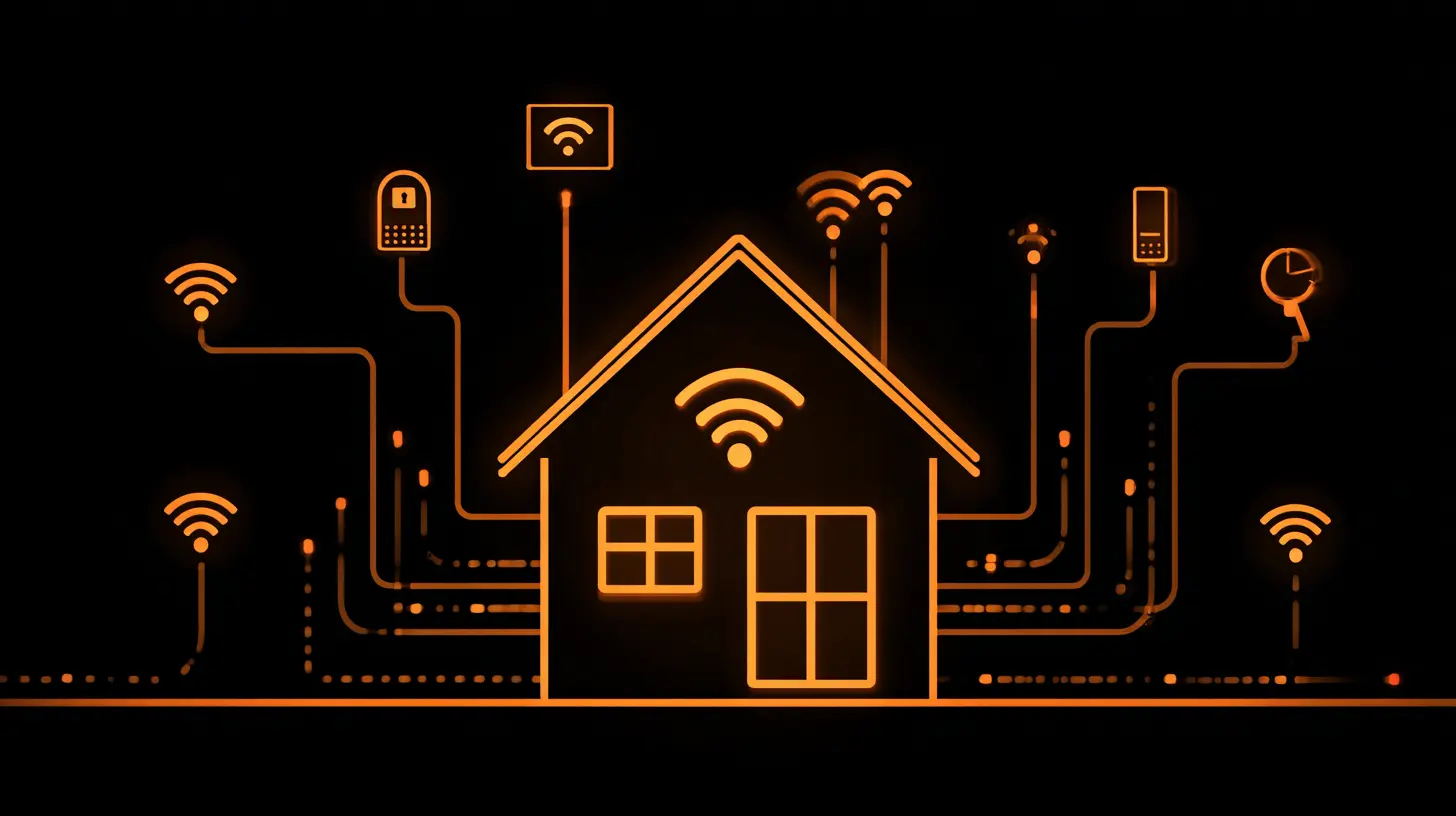
Network Segmentation: The Secret Weapon
If I could recommend only one advanced technique for securing your home network, it would be segmentation. This is the practice of dividing your network into separate zones, each with its own access rules. In an enterprise, this is standard. At home, it is underused.Why Segmentation Matters
Imagine a smart light bulb gets compromised. Without segmentation, that bulb can talk to your laptop, your phone, and your NAS drive. An attacker can pivot from the bulb to more valuable targets. With segmentation, the bulb is isolated in its own subnet. It can only communicate with the internet and maybe a specific server. It cannot touch your personal devices.How to Implement Segmentation
Most modern routers support guest networks. Use that for visitors. But you can go further. If your router supports VLANs (Virtual Local Area Networks), you can create separate networks for IoT devices, work computers, and personal devices. Each VLAN can have its own firewall rules.For example, you might have:
- VLAN 1: Main network for trusted devices (laptops, phones, desktops)
- VLAN 2: IoT network for smart devices (cameras, thermostats, lights)
- VLAN 3: Guest network for visitors
Configure rules so that devices on VLAN 2 cannot initiate connections to VLAN 1, but they can reach the internet. Devices on VLAN 1 can access VLAN 2 only if needed, like for controlling a smart light via a local app.
The trade-off is complexity. Setting up VLANs requires a router that supports them (like a Ubiquiti EdgeRouter or a custom OpenWrt build) and some networking knowledge. For most people, a simple guest network is enough. But if you want future-proof security, learning VLANs is worth the effort.
The Misconception About Firewalls
Many people think a router's built-in firewall is sufficient. It is not. A standard NAT (Network Address Translation) firewall blocks incoming connections, but it does not filter outgoing traffic from your devices. If a device on your network is infected, it can phone home to a command-and-control server. A proper firewall should allow you to block or limit outgoing connections.Some routers have advanced firewall features, like SPI (Stateful Packet Inspection). Enable that. If your router supports it, also consider enabling DNS filtering to block known malicious domains. Services like NextDNS or Pi-hole can do this at the network level, preventing devices from reaching dangerous sites.
DNS Security: The Overlooked Layer
DNS is the phonebook of the internet. When you type a website name, your device asks a DNS server for the IP address. If that DNS server is compromised or if your traffic is intercepted, you can be redirected to a fake site.Use Encrypted DNS
Traditional DNS queries are sent in plain text. Anyone on your network or between you and your ISP can see which sites you visit. More importantly, they can modify the response. Encrypted DNS, such as DNS over HTTPS (DoH) or DNS over TLS (DoT), prevents this.Most modern routers allow you to set a custom DNS server. Use one that supports encryption, like Cloudflare (1.1.1.1) or Quad9 (9.9.9.9). These also block known malicious domains. The setup is simple: go to your router's WAN settings and change the DNS addresses.
One nuance: some ISPs force their own DNS servers. Using a third-party DNS might bypass content filters or parental controls that your ISP provides. If you rely on those, you need to decide which trade-off matters more. For most people, the security gain from encrypted DNS outweighs the loss of ISP filtering.
Consider a Local DNS Filter
A Pi-hole is a small device that runs on a Raspberry Pi and acts as a DNS sinkhole. It blocks ads and trackers at the network level. But it also blocks malware domains. By running your own DNS server, you gain full control over what your devices can reach. The downside is that it requires maintenance and can break some legitimate services that rely on tracking. But it is one of the most effective ways to improve network security.
IoT Devices: The Weakest Link
Internet of Things devices are notorious for poor security. Many run outdated software, have hardcoded passwords, and cannot be updated. They are the easiest way for an attacker to get into your network.Isolate IoT Devices
I already mentioned segmentation. This is where it pays off. Put all IoT devices on a separate VLAN or guest network. If your router does not support VLANs, at least use the guest network feature. Most guest networks isolate clients from each other and from the main network.Disable Unnecessary Features
Many smart devices have features you do not need. For example, a smart bulb might have a cloud service that allows remote control. If you only control it locally, disable the cloud access. This reduces the attack surface. Similarly, disable UPnP (Universal Plug and Play) on your router. UPnP allows devices to open ports automatically, which is convenient but dangerous. Malware can use it to expose services to the internet.Update IoT Firmware
Check for firmware updates for every IoT device. Most have a companion app that handles updates. If a device is no longer supported by the manufacturer, consider replacing it. A camera that has not received a security update in three years is a ticking time bomb.Remote Access: VPN vs. Port Forwarding
Many people want to access their home network remotely, whether to check a security camera or grab a file from their NAS. There are two common ways to do this: port forwarding and VPN.Port Forwarding Is Risky
Port forwarding opens a specific port on your router to the internet. It points to a device inside your network. This is convenient but dangerous. If the service running on that port has a vulnerability, an attacker can exploit it. For example, if you forward port 22 for SSH, an attacker can try to brute-force the password. If you forward port 80 for a web interface, a vulnerability in that web server could expose your data.VPN Is the Safer Alternative
A VPN (Virtual Private Network) creates an encrypted tunnel between your remote device and your home network. You connect to the VPN server on your router, and then you can access local resources as if you were at home. No ports are exposed to the internet. The only thing visible is the VPN server itself, which is designed to handle authentication and encryption.Most modern routers have built-in VPN servers, usually supporting OpenVPN or WireGuard. WireGuard is newer, faster, and simpler to configure. If your router supports it, use WireGuard. The trade-off is that setting up a VPN requires some configuration, and you need a client on your remote device. But it is far more secure than port forwarding.
When Port Forwarding Might Be Acceptable
There are rare cases where port forwarding is the only option. For example, some older security cameras require direct port forwarding for remote access. In that case, consider putting the camera on its own isolated VLAN and using a very strong password. Also, change the default port to a non-standard one. This does not make it secure, but it reduces automated scanning.
Physical Security: The Overlooked Aspect
Network security is not just about software. Physical access to your router means total compromise. An attacker can reset it, plug in a device, or install a keylogger.Secure Your Router's Location
Place your router in a location that is not easily accessible to visitors or passersby. If you live in an apartment, do not put it near a window where someone could reach it from outside. Use a cable lock or a secure cabinet if possible.Change Default Credentials
This should go without saying, but many people never change the default admin username and password for their router. Default credentials are publicly available. Change them to something unique. Also, disable remote administration from the WAN (internet) side. Only allow local administration from within your network.Enable Router Logging
Most routers have logging features. Enable them and periodically review the logs for unusual activity. Look for failed login attempts, unknown devices connecting, or traffic to suspicious IP addresses. This is not something most people do, but it can catch an intrusion early.The Future: What to Expect
Home network security is evolving. Wi-Fi 7 is coming, which will bring better encryption and faster speeds. But it will also introduce new vulnerabilities. The trend is toward more integrated security, with routers that include AI-based threat detection and automatic blocking.One development to watch is the Matter protocol for smart home devices. Matter aims to standardize IoT communication and security. If widely adopted, it could reduce the fragmentation that makes IoT devices so insecure. But it is still early, and legacy devices will remain vulnerable.
Another trend is the shift to cloud-managed networks. Services like Amazon eero or Google Nest Wifi offer simplified management but rely on cloud servers. This introduces a new attack vector: if the cloud service is compromised, your network could be too. The trade-off is convenience versus control. For most people, the convenience is worth it, but power users should stick with local management.
Common Mistakes to Avoid
I have seen the same mistakes repeated over and over. Here are the ones that cause the most damage:- Using the default SSID and password. This makes it easy for attackers to identify your router model and look up known vulnerabilities.
- Enabling WPS. It is convenient but insecure. Turn it off.
- Not updating firmware. This is the single biggest risk. An unpatched vulnerability can be exploited in minutes.
- Sharing your main Wi-Fi password. Use a guest network for visitors.
- Ignoring IoT devices. They are often the weakest link. Isolate them.
- Using port forwarding unnecessarily. Use a VPN instead.
- Assuming your ISP's router is secure. ISP-provided routers are often outdated and have limited configuration options. Consider buying your own.
A Practical Checklist for the Future
If you take away nothing else, here is a checklist to secure your home network for the next five years:1. Buy a router that supports WPA3 and has a good track record of firmware updates.
2. Enable automatic firmware updates.
3. Use a strong, unique Wi-Fi password.
4. Disable WPS and UPnP.
5. Set up a guest network for visitors and IoT devices.
6. Use encrypted DNS (DoH or DoT).
7. Change the default admin credentials for your router.
8. Disable remote administration from the internet.
9. Use a VPN for remote access instead of port forwarding.
10. Review connected devices periodically and remove unknown ones.
This is not a one-time task. Security is a process. You need to stay informed about new vulnerabilities and update your setup accordingly. But by following these principles, you will be ahead of most people and prepared for the challenges that the future of home networking will bring.
all images in this post were generated using AI tools
Category:
Technology GuidesAuthor:

Kira Sanders
Discussion
rate this article
1 comments
Quade Thomas
This article raises important points about network security. I wonder how upcoming technologies, like AI and IoT, will reshape home security strategies. It's exciting to think about the future of connectivity while staying safe online. Looking forward to more insights!
July 23, 2026 at 12:03 PM
Kira Sanders
Thanks for your thoughts! The intersection of AI, IoT, and home security is indeed fascinating. I'll definitely explore these developments in future articles. Stay tuned!