How to Maximize Storage on Your Smartphone
28 June 2026
Let’s be real—running out of storage on your smartphone is like getting halfway through your favorite song and the music just... stops. It’s frustrating, unexpected, and frankly, totally avoidable. Whether you're rocking the latest iPhone or an older Android device, storage space fills up fast. Between apps, photos, videos, and memes you swore you’d delete, things can get cluttered.
But here’s the good news: you don’t need to buy a new phone just to make room for more. There are smart, simple ways to stretch that storage space and reclaim your smartphone freedom.
So buckle up—because we’re diving deep into how to maximize storage on your smartphone, step by step, hack by hack. Let’s clear out the digital cobwebs and get your device running lean and mean.
? Why Your Smartphone Storage Fills Up So Fast
Ever wonder where all your storage goes? It's not just photos and apps. Here’s where a big chunk of it disappears:- System files: Your operating system (iOS or Android) eats up a good portion of space right out of the box.
- App data: Social media, games, and messaging apps hog space with cached images and videos.
- Media files: Photos, videos, downloads, audio files—the usual suspects.
- Junk files: Temporary files, cookies, and leftover installation files silently build up.
- Underused apps: Remember that meditation app you opened once? Yeah, it’s still there.
Bottom line? It adds up. Fast. But don’t worry—now that you know what’s clogging your device, you’re halfway to clearing it.
? Step 1: Start with a Deep Clean
Let’s begin with some digital decluttering. Think of it as spring cleaning for your smartphone.✅ Delete Unused Apps
If you haven't opened it in the past month, chances are, you won’t miss it. Scroll through your app drawer and remove anything you no longer need.? Tip: On iPhones, go to Settings > General > iPhone Storage to see what’s consuming space. Android users can check under Settings > Storage.
✅ Clear Cached Data
Apps like Instagram, Facebook, and YouTube store tons of cached data—those are just temporary files, and they're safe to clear.- On Android: Settings > Storage > Cached data, then tap to clear.
- On iPhone: You’ll need to uninstall and reinstall apps to clear cache (yep, kind of a pain, but worth it).
✅ Delete Duplicate and Blurry Photos
Let’s be honest—your gallery is probably loaded with burst shots, screenshots of memes, and blurry concert photos. Free up space by deleting these clutter-makers. Use apps like Google Photos or Gemini Photos to find duplicates and junk automatically.
☁️ Step 2: Use Cloud Storage to Your Advantage
If you’re not using the cloud yet—it’s time. Cloud storage is like an infinite digital attic, holding all your stuff without taking up space on your phone.☁️ Google Photos
It offers free (up to 15GB) storage tied to your Google account. Auto-upload your pics and videos, then delete them locally from your device.☁️ iCloud Photos
iPhone users can opt for Optimize iPhone Storage under Settings > Photos. It keeps full-resolution photos in the cloud while storing lightweight versions on your phone.☁️ Dropbox, OneDrive, or Amazon Photos
These services are great alternatives if you want to spread your files around. They also allow multi-device syncing.? Pro tip: Set auto-upload options so your important files are always backed up without manual effort.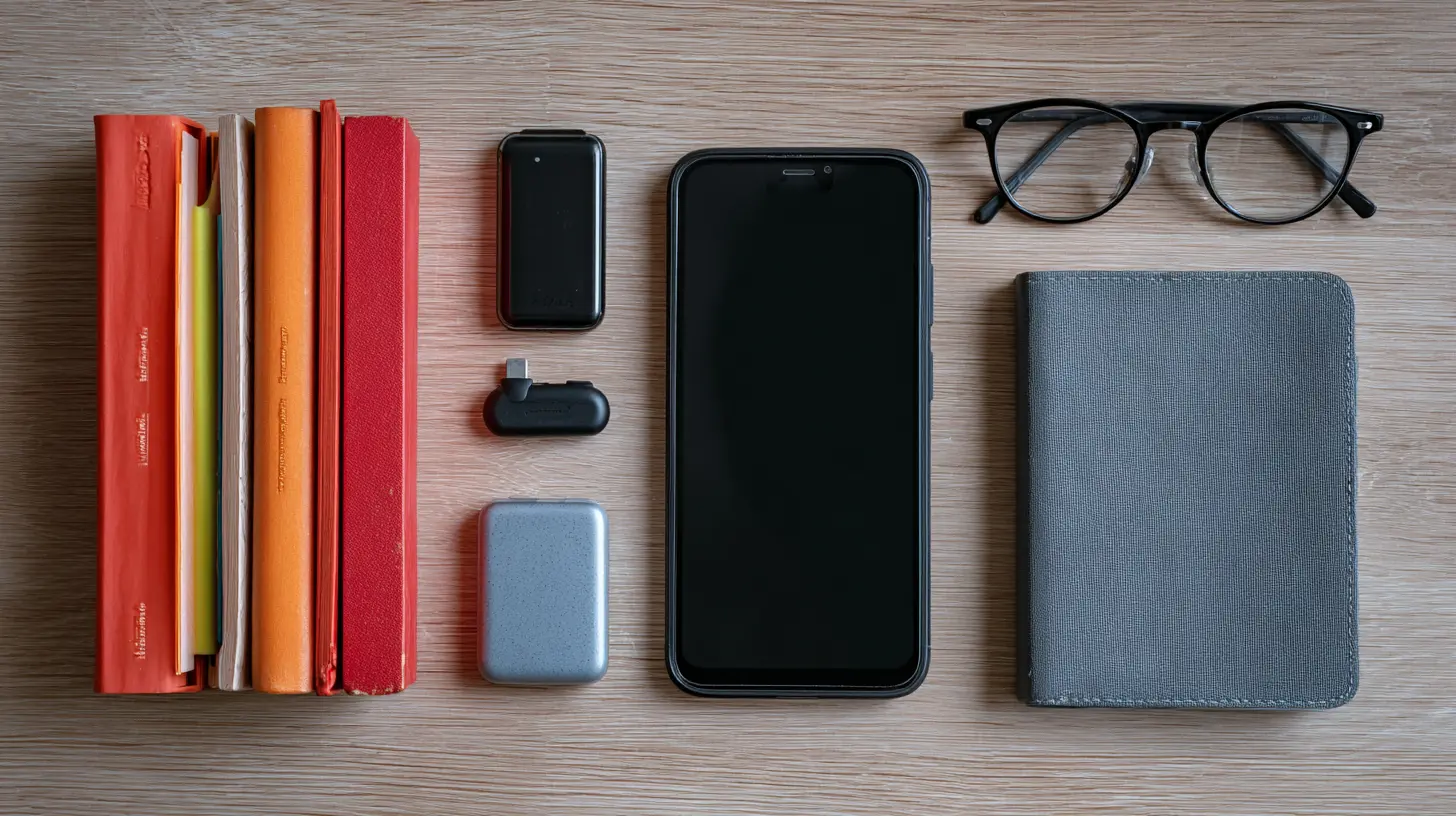
? Step 3: Keep Apps on a Short Leash
Some apps are data hoarders. They store tons of files in the background or run updates that take up more space.✅ Use Lite or Web Versions of Apps
Apps like Facebook Lite, Messenger Lite, and Twitter Lite are super efficient. They use less space and less data, which is a double win.You can also save space by using the mobile browser versions of certain apps. For example, Instagram through Chrome or Safari doesn’t take up any space after you close the tab.
✅ Move Apps to SD Card (Android Only)
If your device supports it, insert a microSD card and move large apps and games there. Go to Settings > Apps > [App Name] > Storage and hit Change to move it.(Note: Sadly, iPhones don’t support SD cards. Apple likes to keep things “clean.”)
? Step 4: Manage Downloads and Offline Files
Ever downloaded a ton of Netflix episodes or Spotify playlists for a flight and forgot to delete them afterward? Yep, those eat up gigabytes.? Clear Offline Content
Go through:- Spotify: Delete old playlists or albums under Settings > Storage.
- YouTube/Netflix: Go to the Downloads section and remove stuff you’re done watching.
?️ Tidy Up Your Files App
Head to your phone’s file manager or the Files by Google app, and sort files by size. Delete large PDFs, old memes, and outdated documents.? Step 5: Compress Where You Can
Compression is like vacuum-sealing your digital life—it keeps everything tight and space-efficient.?️ Compress Photos and Videos
Use apps like Photo Compress (Android) or Compress Photos & Pictures (iOS) to shrink file sizes without ruining quality.? Lower Camera Defaults
Set your camera to capture photos and videos in slightly lower resolutions if you're tight on space. For instance, do you really need every video in 4K?- On iPhone: Settings > Camera > Record Video
- On Android: Open the camera > Settings > Resolution
? Step 6: Automate Your Storage Management
Set it and forget it—that’s the goal.? Enable Smart Storage (Android)
Android’s built-in smart storage automatically deletes backed-up photos and videos after 30, 60, or 90 days.- Go to Settings > Storage > Smart Storage, and toggle it on.
⏱️ Schedule Regular Cleanups
Use reminders or automation apps like Tasker or IFTTT to perform monthly cleanups, like clearing cache or deleting old downloads.Think of it like digital hygiene—brushing your smartphone’s teeth, so to speak.
? Bonus Tips: Think Outside the Box
Need even more space? Try these pro hacks.? Use OTG USB Drives
OTG (On-The-Go) USB drives let you back up files, photos, and videos on a separate device. Great for road trips or times when you’re off the grid.? Backup to Your Computer
Old-school, but effective. Plug your phone into your computer and transfer files the old-fashioned way. Store media on external hard drives or SSDs.? Use Smart Gallery Apps
Not all gallery apps are equal. Some, like Google Photos or Slidebox, help you sort, delete, and manage your media better than the default one.? Get Back Control of Your Phone
Here’s the truth: You don’t have to live life halfway because your phone screams “Storage Almost Full” every five minutes. Managing smartphone storage doesn’t require a deep tech background or hours of your time—it just needs a bit of consistency and a few smart habits.Think of your smartphone like your digital room. You want to keep it clean, organized, and clutter-free so it’s always ready when you need it. ?
And trust me, once you clear the gunk, your phone will feel faster, lighter—and you’ll feel a little more in control.
So, what are you waiting for? Go ahead and hit that delete button. Your storage space (and your sanity) will thank you for it.
all images in this post were generated using AI tools
Category:
Mobile DevicesAuthor:

Kira Sanders
Discussion
rate this article
2 comments
Zyana Webster
Great tips! It's amazing how simple adjustments can free up so much space. Thanks for sharing these helpful ideas!
August 24, 2026 at 3:58 AM
Opal Wood
Great tips on maximizing smartphone storage! I especially appreciate the advice on managing apps and using cloud services. Many users overlook how easily unwanted files accumulate. Regularly decluttering and utilizing external storage options can make a significant difference. It's all about being proactive to ensure your device runs smoothly.
July 1, 2026 at 2:42 AM
Kira Sanders
Thanks for your feedback! I'm glad you found the tips helpful. Staying proactive with storage really does make a big difference. Happy decluttering!