How to Fix Common PC Gaming Performance Issues
17 May 2026
PC gaming is an incredible experience—blazing-fast frame rates, ultra-high resolutions, and stunning graphics. But nothing kills the fun faster than lag, stuttering, or crashing. If you’re dealing with frustrating performance issues, don’t worry—you’re not alone!
This guide will walk you through the most common PC gaming performance problems and provide practical solutions to get your rig back in top shape. Let's dive in!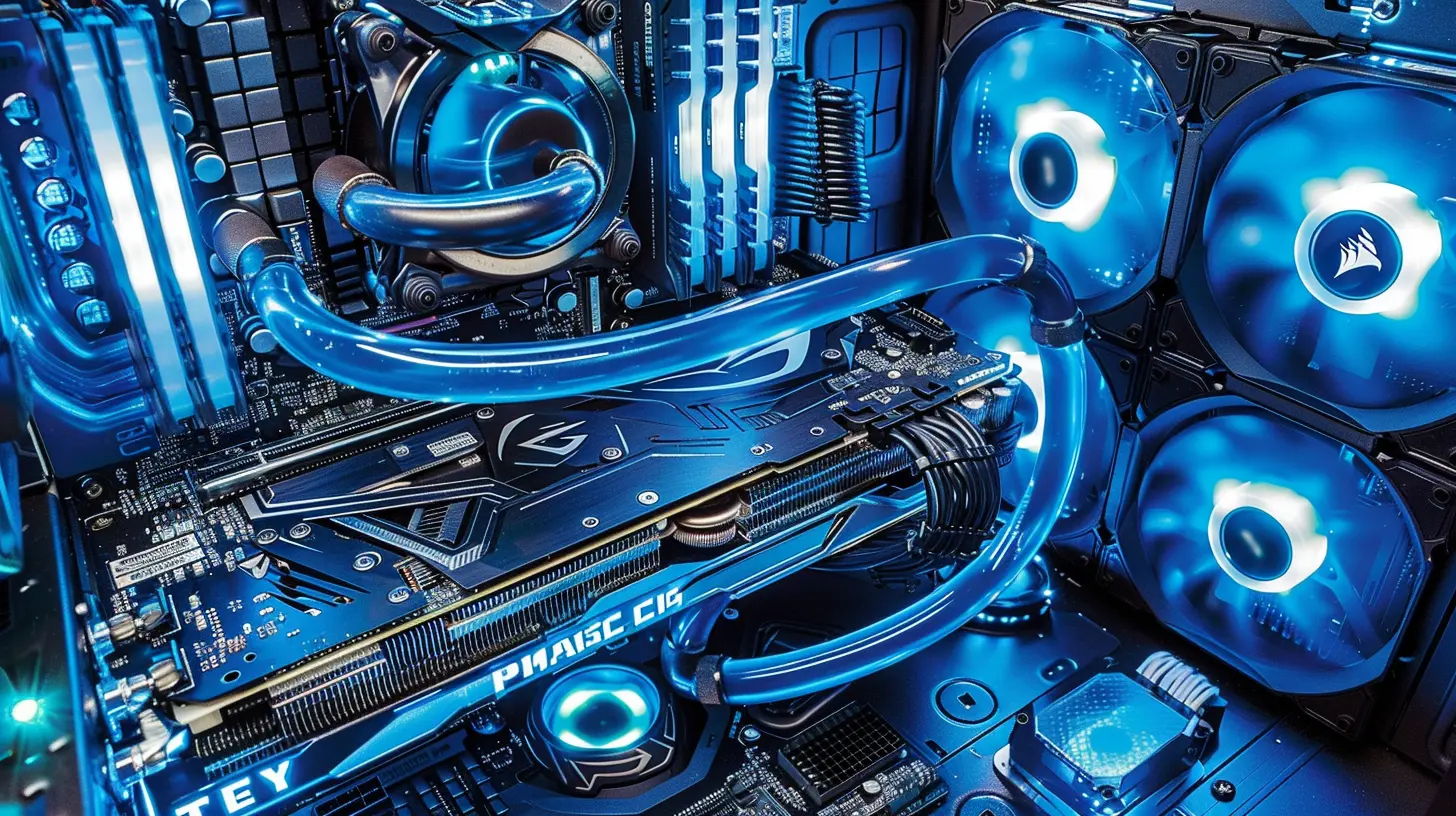
1. Low FPS (Frames Per Second)
Low FPS makes games feel sluggish and unresponsive. If your gameplay looks more like a slideshow, try these fixes:1.1 Update Your Graphics Drivers
Your GPU (graphics processing unit) is the heart of gaming performance. Outdated drivers can cause compatibility issues and poor performance.How to update:
- NVIDIA users: Open GeForce Experience → Click "Drivers" → Check for updates.
- AMD users: Open Radeon Software → Click "Updates" → Download the latest version.
1.2 Adjust In-Game Graphics Settings
If you’re running a game on ultra settings with a mid-range GPU, don’t expect buttery smooth performance.Try lowering these settings:
- Shadow Quality – Lowering this can provide a big FPS boost.
- Anti-Aliasing – Switching from MSAA to FXAA or turning it off can help.
- Resolution – Lowering your resolution (e.g., 1080p instead of 1440p) improves performance.
- Ray Tracing – If your GPU struggles, consider disabling it.
1.3 Enable Game Mode & Hardware-Accelerated GPU Scheduling
Windows has built-in features that optimize gaming performance.To enable Game Mode:
1. Press `Win + I` to open Settings.
2. Navigate to Gaming > Game Mode.
3. Toggle Game Mode on.
To enable Hardware-Accelerated GPU Scheduling:
1. Open Settings → System → Display.
2. Click Graphics Settings.
3. Toggle "Hardware-Accelerated GPU Scheduling" on.
2. Stuttering and Lag Spikes
Game stutter can be infuriating—one second your game runs fine, and the next, it’s a jerky mess. Here’s how to smooth things out:2.1 Check Background Processes
Too many programs running can hog CPU and RAM, causing lag.Fix:
1. Press `Ctrl + Shift + Esc` to open Task Manager.
2. Click on Processes and sort by CPU or Memory usage.
3. End unnecessary apps (e.g., Chrome, Discord, or background updates).
2.2 Enable V-Sync or G-Sync/Freesync
If screen tearing or stuttering is an issue, enable these technologies:- V-Sync: Prevents screen tearing but can introduce input lag.
- G-Sync (NVIDIA) / FreeSync (AMD): Synchronizes FPS with monitor refresh rate for smoother performance.
Find these options in your GPU driver settings or in-game menu.
2.3 Increase Virtual Memory (Page File)
If your system runs out of RAM, Windows uses virtual memory (page file). Increasing it can improve performance.How to increase virtual memory:
1. Open Control Panel → System → Advanced System Settings.
2. Go to Performance → Settings → Advanced.
3. Under "Virtual memory," click Change.
4. Set Initial Size to 1.5x your RAM and Maximum Size to 3x your RAM.
Example: If you have 8GB RAM, set Initial Size to 12GB and Maximum Size to 24GB.
3. High CPU Usage in Games
Some games eat up your CPU, leaving little room for other tasks. If you're seeing 100% CPU usage, try these steps:3.1 Disable Background Applications
Apps like Chrome, Discord, or game launchers (Steam, Epic Games, etc.) can hog CPU resources.1. Open Task Manager (`Ctrl + Shift + Esc`).
2. Right-click unnecessary processes → Select End Task.
3.2 Adjust CPU Affinity for Certain Games
For CPU-intensive games, limiting cores can sometimes help.Steps:
1. Open Task Manager (`Ctrl + Shift + Esc`).
2. Go to Processes and right-click the game.exe file.
3. Click Set Affinity → Uncheck a few CPU cores and test performance.
3.3 Stop Unnecessary Windows Services
Some background services drain CPU performance.Disable unwanted services:
1. Press `Win + R`, type `msconfig`, and hit Enter.
2. Go to the "Services" tab and check "Hide All Microsoft Services".
3. Disable unnecessary third-party services (e.g., Adobe, OneDrive).
4. Game Crashing or Freezing
Nothing's worse than a game randomly crashing, especially during a critical moment! Here's how to stop crashes:4.1 Update Your Drivers & Windows
Outdated software is a major crash culprit.- Update GPU Drivers (see 1.1)
- Update Windows: `Win + I` → Update & Security → Check for Updates
4.2 Check for Overheating Issues
Overheating can cause your system to shut down or crash.Check temperatures using:
- MSI Afterburner (for GPU)
- HWMonitor (for CPU & GPU)
If temperatures exceed 85°C, try:
- Cleaning dust from vents & fans.
- Reapplying thermal paste to the CPU/GPU.
- Improving airflow with extra case fans.
4.3 Verify Game Files (Corrupted Files Issue)
Sometimes a corrupt game file causes crashes.On Steam:
1. Open Steam → Right-click the game → Select Properties.
2. Navigate to Local Files → Click Verify Integrity of Game Files.
3. Wait for Steam to check and repair files.
5. Slow Game Load Times
Long loading screens? Let’s fix that.5.1 Upgrade to an SSD
If you're still using an HDD, switching to an SSD drastically reduces load times.- NVMe SSDs (fastest, best for gaming)
- SATA SSDs (cheaper but still way faster than HDDs)
5.2 Enable Windows Fast Startup
Fast Startup helps Windows load quickly and improves overall performance.Enable it:
1. Open Control Panel → Power Options.
2. Click Choose what the power buttons do.
3. Enable Turn on fast startup.
6. Network Lag & High Ping
If online gameplay feels sluggish, your connection might be the culprit.6.1 Use a Wired Connection
Wi-Fi can be inconsistent. A wired Ethernet connection provides a stable connection with lower ping.6.2 Close Bandwidth-Hogging Applications
Streaming, downloads, or other devices using bandwidth can slow your game down.Check usage with:
- Task Manager (`Ctrl + Shift + Esc`) → Network tab.
- Router admin panel (log into your router to see connected devices).
6.3 Change Your DNS Settings
Sometimes, your ISP’s DNS servers are slow.Switch to Google DNS:
1. Open Control Panel → Network and Internet → Network and Sharing Center.
2. Click on your internet connection → Properties.
3. Select Internet Protocol Version 4 (TCP/IPv4) → Use the following DNS servers.
4. Enter:
- Preferred: `8.8.8.8`
- Alternate: `8.8.4.4`
5. Click OK and restart your connection.
Final Thoughts
Fixing PC gaming performance issues can take a bit of troubleshooting, but the steps above should help you get back to smooth gameplay. Whether you're battling low FPS, lag, crashes, or long load times, optimizing your system can make all the difference.Now, go ahead—tweak those settings, update those drivers, and get back in the game!
all images in this post were generated using AI tools
Category:
Pc GamingAuthor:

Kira Sanders
Discussion
rate this article
2 comments
Tabitha Bryant
Is your game lagging despite high specs? Dive into the shadows of your setup. Sometimes the answer lies in the most unexpected places... Explore and uncover the truth.
June 15, 2026 at 4:41 AM
Kira Sanders
You're right; even high-spec setups can have hidden issues. It's worth checking settings, background processes, and drivers. Sometimes a small tweak can make a big difference.
Rachel McGowan
Great tips on boosting PC gaming performance! It's surprising how simple tweaks can make a big difference. I especially found the advice on updating drivers and optimizing settings helpful for smoother gameplay. Keep up the good work!
May 20, 2026 at 11:41 AM
Kira Sanders
Thanks for the feedback! I'm glad you found the tips helpful. Happy gaming!