How Operating Systems Are Redefining Productivity Tools
18 July 2026
You probably don't think much about your operating system when you're deep in a flow state, knocking out tasks in a spreadsheet or hopping between browser tabs. But the truth is, the OS underneath those apps has undergone a quiet transformation. It's no longer just a gatekeeper that launches programs and manages files. Modern operating systems have become productivity tools in their own right, reshaping how we work in ways that are both obvious and invisible.
I've spent years watching this shift happen, and it's worth unpacking because most people still treat their OS like a utility rather than the strategic asset it can be. Let's get into how this redefinition is playing out, what it means for your daily workflow, and where the pitfalls hide.
The OS as a Productivity Layer: Beyond the Desktop Metaphor
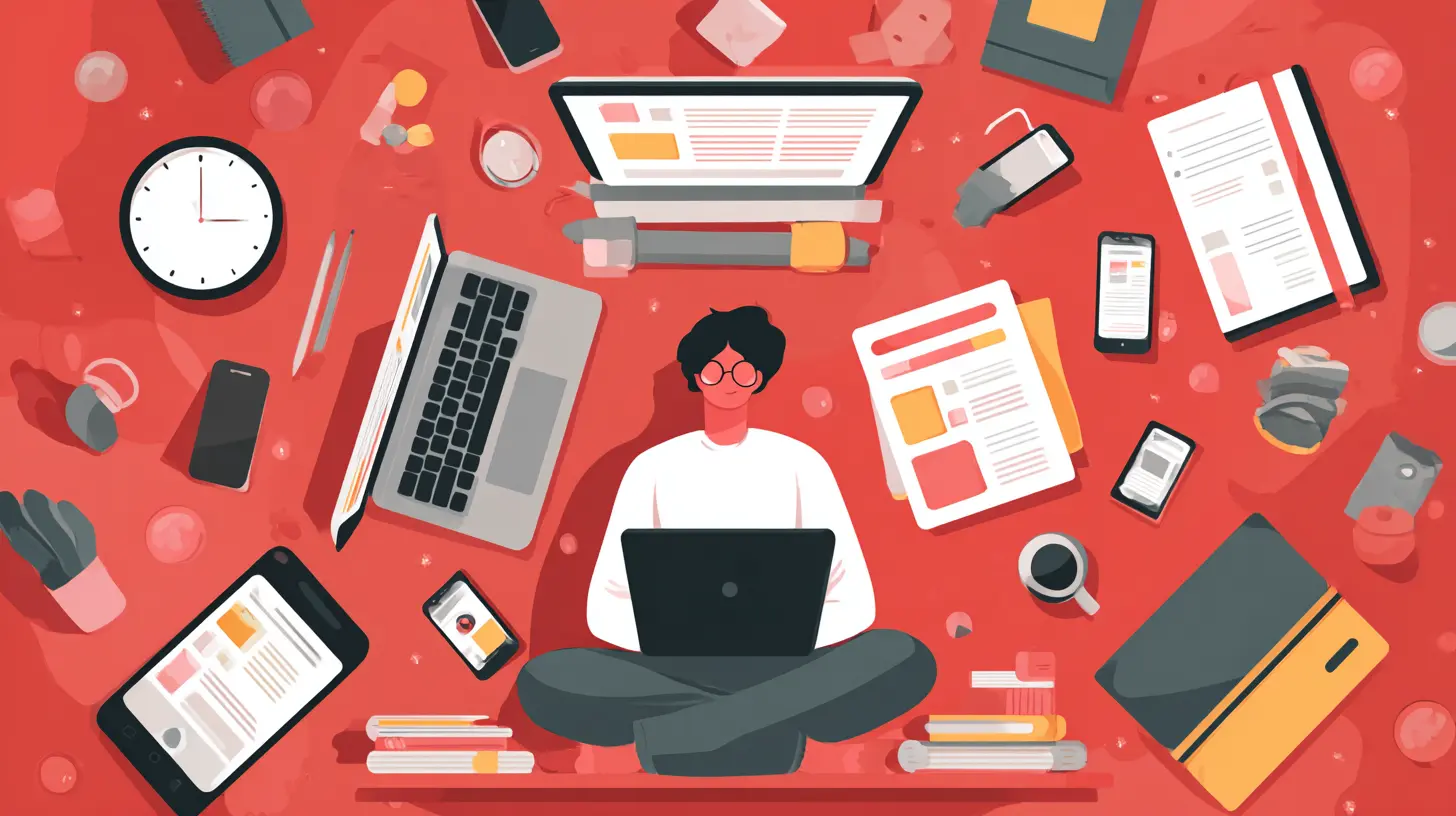
For decades, the operating system was a passive platform. You clicked an icon, an app opened, you did your work, you closed the app. The OS handled memory, processes, and hardware, but it stayed out of your way. That model is fading.Today's operating systems actively shape how you interact with information. They've absorbed features that used to live in third-party apps. Windows 11's Snap Layouts, macOS Stage Manager, and ChromeOS's virtual desks aren't just window management gimmicks. They represent a fundamental shift: the OS now orchestrates your workflow at a higher level.
Why does this matter? Because every time you switch contexts, you pay a cognitive cost. Research on task switching (which I've seen cited in various productivity studies) suggests it can take over 20 minutes to regain full focus after an interruption. The OS can either exacerbate that problem or mitigate it. When your OS provides intelligent window grouping, persistent virtual desktops, and seamless cross-app data sharing, it reduces the friction of moving between tasks.
The trade-off here is control versus convenience. If your OS gets too aggressive about organizing your workspace, it can feel like a nanny. Power users often resent being told how to arrange their screens. But for the majority of knowledge workers, a well-designed OS workspace reduces decision fatigue. You don't have to think about where to put that window; the OS handles it based on your habits.
Virtual Desktops and Spaces: The Unseen Productivity Multiplier
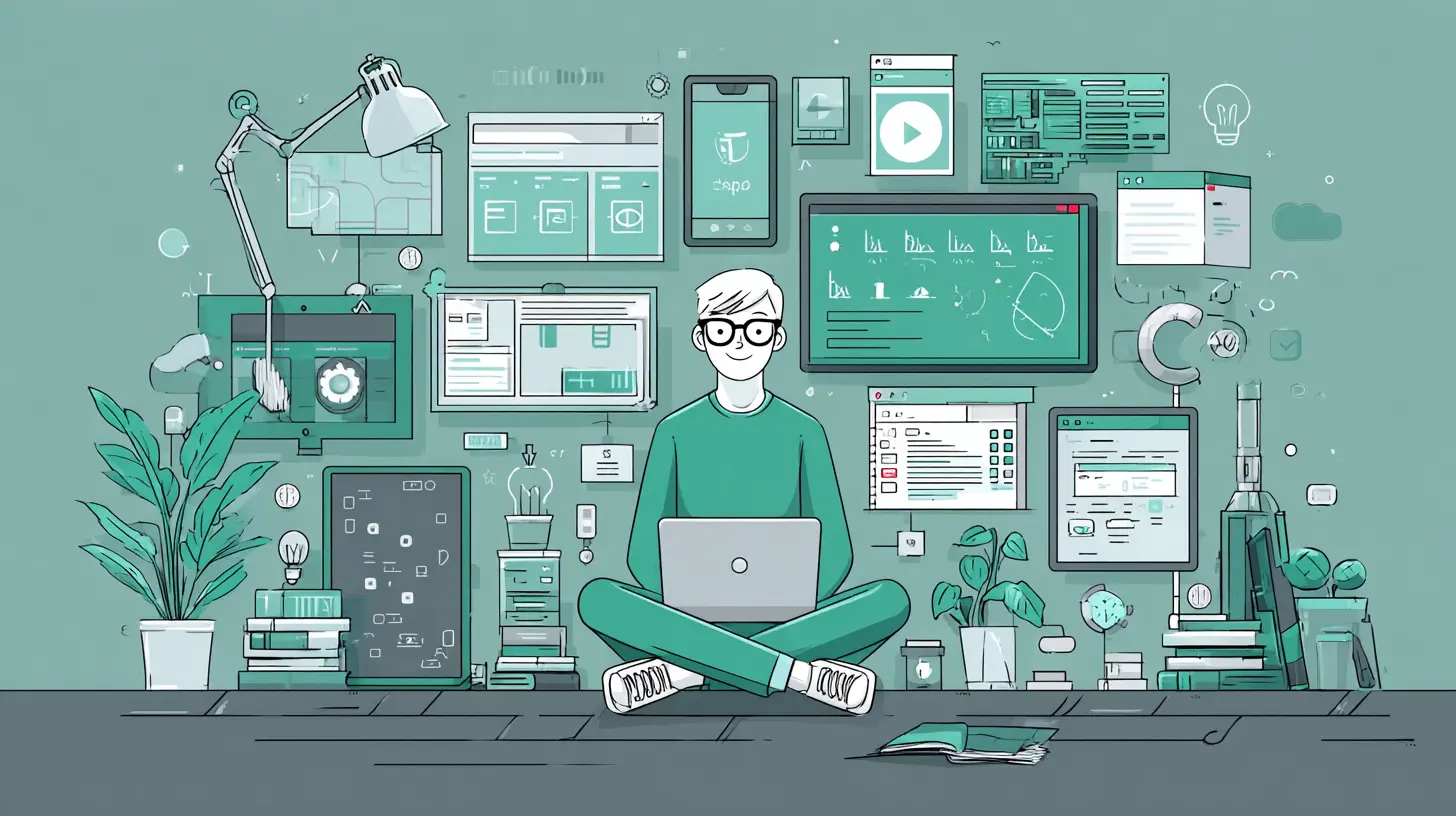
One of the most underrated productivity features in modern OSes is virtual desktop support. macOS calls them Spaces, Windows has Task View, and Linux desktops have had them for years under various names. But most people still don't use them effectively.The common mistake is treating virtual desktops like separate computers. People create one for "work," one for "personal," and one for "email." That's a start, but it misses the real power. Virtual desktops shine when you use them for task-specific contexts within a single project.
Let me give you a concrete example. Say you're writing a report. You could have Desktop 1 with your research browser tabs and notes app. Desktop 2 has your writing tool and reference PDFs. Desktop 3 has your communication tools like Slack and email. When you switch between desktops, your brain gets a visual cue that you're shifting mental modes. This reduces the urge to check email while writing because email isn't visible. Out of sight really does reduce distraction.
The best practice? Keep it to three or four desktops maximum. More than that becomes chaotic. And don't use virtual desktops for apps you need to reference constantly, like a messaging app that you need to monitor. That defeats the purpose of context separation.
Notification Management and Focus Modes: The OS as Attention Gatekeeper
Notifications used to be a simple on/off switch. Now they're a battlefield for your attention, and the OS is the general. Both Windows 11 and macOS have sophisticated focus modes that go beyond "Do Not Disturb."What's interesting is how these systems have evolved. They now understand context. You can set a focus mode that activates automatically when you're in a specific app, during certain hours, or when you're sharing your screen in a meeting. The OS can even sync these modes across devices. If you set a focus mode on your Mac, your iPhone follows suit.
This is powerful because it addresses a fundamental truth about productivity: you can't multitask well. The OS is finally acknowledging that and building tools to help you single-task. But there's a misconception here. Focus modes aren't just about blocking distractions. They're about prioritizing. When you activate a work focus, you're telling the OS to let through only the notifications from people and apps that matter for that specific context.
The downside? Over-reliance on automated focus modes can backfire. If you set a focus mode to block all notifications during a two-hour deep work block, you might miss an urgent message from a colleague. The solution is to use the "allow list" feature aggressively. Only let through notifications from your direct manager, your most critical project channel, or your family if they're your emergency contacts. Everything else can wait.
Cross-Device Continuity: The OS as a Seamless Workflow Hub
This is where operating systems have made the biggest leap. Apple's Continuity, Microsoft's Phone Link, and Google's ecosystem features have turned the OS into a bridge between devices. You can start a task on your phone, pick it up on your laptop, and finish it on your tablet, all without emailing yourself a file.The technical magic here is in the OS-level integration. When you copy something on your iPhone, it's available on your Mac because the OS handles the clipboard synchronization. When you take a screenshot on your Android phone, it appears on your Windows PC because the OS is managing the transfer. This isn't just convenience. It eliminates one of the biggest productivity killers: the friction of moving data between devices.
But there are trade-offs. These ecosystems are sticky. Once you're deep in Apple's ecosystem, moving to Windows becomes painful. Microsoft's Phone Link works best with Android phones, and Google's ecosystem is strongest on ChromeOS and Android. You have to choose your platform carefully based on your device mix.
The common mistake is assuming cross-device features work perfectly out of the box. They don't. You need to configure them. On macOS, you need to enable Handoff and Universal Clipboard. On Windows, you need to set up Phone Link and sign into the same Microsoft account. If you skip this setup, you're leaving productivity gains on the table.
Built-in Automation: The OS as Your Personal Assistant
This is the area where operating systems are quietly becoming productivity powerhouses. Apple's Shortcuts, Microsoft's Power Automate (built into Windows), and various Linux automation tools are no longer niche. They're first-class OS features.Shortcuts on macOS and iOS can chain together actions across apps. You can create a shortcut that grabs text from a PDF, formats it into a note, sends it to a colleague via email, and logs the action in a spreadsheet. All with one trigger. Power Automate on Windows can do similar things with desktop apps and web services.
The real power comes from triggers. The OS can run automations based on time, location, app launches, or even system events like connecting to a specific Wi-Fi network. For example, you can set an automation that opens your work apps, mutes personal notifications, and starts a focus session when you connect to your office Wi-Fi.
The downside? Automation can become brittle. If an app updates its structure, your shortcut might break. And over-automation can make you forget how to do simple tasks manually, which is dangerous if the automation fails. The best approach is to automate repetitive, low-risk tasks and leave high-stakes workflows manual or semi-automated.
The File System Reimagined: Search, Tags, and Smart Folders
The old hierarchical file system is dying. Modern OSes are moving toward a search-first, metadata-driven approach. Spotlight on macOS, Windows Search, and Google's search on ChromeOS now index not just file names but file contents, metadata, and even context from your usage patterns.This changes how you should organize your files. The traditional folder tree with deep nesting is becoming obsolete. Instead, you can rely on tags, smart folders, and search queries. On macOS, you can create a smart folder that automatically collects all PDFs containing a specific keyword, regardless of where they're stored. On Windows, you can use libraries and indexed search to find files instantly.
The productivity gain here is massive. You stop wasting time navigating folder structures and start finding files by what they contain. But there's a catch. This only works if you use consistent naming conventions and tags. If you dump files with random names and no tags, search becomes useless. The OS can't read your mind.
The best practice is to adopt a "search-first" filing system. Instead of creating a folder for every project, use a flat structure with descriptive file names and a few broad categories. Then rely on the OS search to find what you need. This takes discipline, but it pays off in the long run.
Security and Productivity: The Unseen Trade-off
Operating systems have become more aggressive about security, which directly impacts productivity. Features like macOS's Gatekeeper, Windows Defender, and system-level app permissions are necessary, but they introduce friction.Every time you install a new app, the OS might ask for permissions to access your microphone, camera, files, or notifications. This is good for security but bad for flow. The constant "Allow this app to access your photos?" dialog breaks your concentration.
The misconception here is that more security always means less productivity. In reality, the OS is trading a small amount of friction for a large amount of protection against ransomware and data breaches. The key is to manage these permissions proactively. Instead of waiting for the OS to ask, go into your system settings and grant permissions for trusted apps in advance. This eliminates the pop-ups during a work session.
Another common mistake is disabling security features entirely to gain speed. Don't do it. The productivity loss from a malware infection far outweighs the inconvenience of security prompts. Instead, learn the security model of your OS and work with it, not against it.
The Role of AI in the OS: Current and Future
AI is beginning to infiltrate operating systems, and it's changing productivity in subtle ways. Windows Copilot, macOS's Siri suggestions, and ChromeOS's smart text prediction are early examples. These features analyze your behavior and try to predict what you need next.For instance, the OS might suggest opening a file you frequently use at a certain time of day, or it might offer to summarize a long email. This is a double-edged sword. When it works, it feels like magic. When it fails, it feels like noise.
The current state of AI in OSes is still immature. Most suggestions are based on simple pattern matching rather than deep understanding. You'll see a lot of irrelevant recommendations. The best approach is to treat AI suggestions as a starting point, not a command. If the OS suggests a file, glance at it. If it's useful, great. If not, ignore it. Don't let AI suggestions distract you from your actual task.
Looking forward, I expect AI to become more context-aware. The OS will understand not just what you're doing but why you're doing it. That's when productivity tools will truly become intelligent assistants rather than just pattern-matching engines. But we're not there yet.
Gaming and Productivity: An Unlikely Connection
Gamers have known this for years, but the rest of us are catching up. Operating systems that optimize for gaming often optimize for productivity as well. Features like Game Mode on Windows, which prioritizes CPU and GPU resources for a foreground application, work just as well for a video editor or a data analyst running a heavy simulation.The reason is simple. Both gaming and productivity tasks benefit from low latency, high frame rates, and efficient resource allocation. The OS techniques developed for gaming are being repurposed for work. Windows 11's Auto HDR and DirectStorage, for example, benefit creative professionals working with high-resolution media.
The trade-off is that these features can drain battery life on laptops. If you're on battery power, you might want to disable Game Mode or performance optimizations. But when plugged in, there's no reason not to use them.
Common Mistakes and How to Avoid Them
I've seen people make the same mistakes over and over when trying to leverage their OS for productivity. Here are the most common ones.Over-customization. Some users spend hours tweaking every setting, creating custom themes, and installing third-party utilities. This becomes a form of procrastination. The OS should be a tool, not a hobby. Set it up once and move on.
Ignoring updates. OS updates often include performance improvements and new productivity features. Delaying updates means missing out on these benefits. But don't install updates during a work session. Schedule them for off-hours.
Using too many virtual desktops. As I mentioned earlier, more than four becomes chaotic. Stick to a small number and name them clearly.
Not learning keyboard shortcuts. The OS provides shortcuts for almost everything. Learning a few dozen can save hours per week. Start with window management, search, and app switching shortcuts.
Neglecting backup. Modern OSes have excellent backup tools like Time Machine and File History. Use them. The productivity loss from a failed drive without a backup is catastrophic.
Best Practices for OS-Driven Productivity
Let me consolidate the actionable advice.First, spend 30 minutes configuring your OS's focus modes and notification settings. This is a one-time investment that pays dividends every day.
Second, learn your OS's search shortcuts. On macOS, that's Command+Space. On Windows, it's the Windows key. Use these to launch apps and find files instead of navigating menus.
Third, set up cross-device continuity features. Link your phone to your computer. Enable clipboard sharing. Configure handoff for supported apps.
Fourth, automate at least one repetitive task using the built-in automation tools. Start small. Maybe a shortcut that opens your daily apps and sets your focus mode.
Fifth, review your file organization. Move toward a search-first approach with descriptive file names and tags. Delete files you no longer need.
The Future of OS as Productivity Tool
We're moving toward an OS that doesn't just respond to commands but anticipates needs. The line between OS and productivity suite is blurring. I expect to see deeper integration with AI, better cross-platform compatibility, and more intelligent resource management.But the fundamental principle remains the same. The OS is the foundation of your digital work. Treat it as such. Invest time in understanding its capabilities and configuring it for your workflow. The productivity gains are real, but they require conscious effort. The OS can't do the work for you. It can only remove the friction so you can focus on what matters.
all images in this post were generated using AI tools
Category:
Operating SystemsAuthor:

Kira Sanders
Discussion
rate this article
1 comments
Macey Patterson
This article misses the mark by not addressing how emerging operating systems could actually complicate user experience. While new productivity tools promise efficiency, they often require recalibrating user expectations, creating a learning curve that can hinder, rather than enhance, productivity.
July 22, 2026 at 2:46 AM
Kira Sanders
Thanks for your insight. You're right; the evolution of operating systems can introduce complexities that challenge user adaptability. Balancing innovation with usability is crucial.